
Tips and Tricks for Styling JupyterHub Presentation Slides#
This notebook has examples on how to change font size, colour, and style. More information is available here.
Change font colour#
This text is blue.
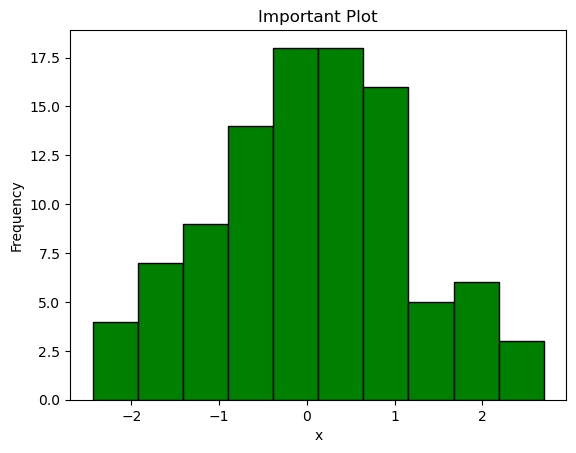
Look at the plot to the right. Notice that the code is hidden (currently not available).
Change font size#
This text is 12px.
This text is 16px.
This text is 18px.
This text is 36px.
import numpy as np
import matplotlib.pyplot as plt

data = np.random.normal(0,1,100)

plt.hist(data, color="green", edgecolor="black")
plt.xlabel('x')
plt.ylabel('Frequency')
plt.title('Important Plot');
Another Section#
another bullet point
bullet point 1
bullet point 2
bullet point 3
x = 10
important_msg = f'The value is {x}'
important_msg
'The value is 10'
Combine font size and colour#
This text is green.
Font Style#
This is italic
This is oblique
Combine font size, colour, and style#
This is italic
This is italic
## this slide has additional analysis that I haven't shown in my presentation